Team Management
Invite colleagues into your DDMARC organization and give each of them one of three roles. Everyone in an organization sees every domain — the role controls what they can change, not what they can see.
Team collaboration starts on Growth
Monitor and Protect organizations are single-user: the invite endpoint rejects them. Growth includes 5 seats and Professional 10; Enterprise and the Partner plans are unlimited. Seats count active members plus pending invitations, and the limit is re-checked when an invitation is accepted.
Included from Growth ($69/mo).Start a 14-day trial →See the Growth plan →
The three roles
DDMARC has exactly three roles: admin, member and viewer. Admin is the billing role — there is no separate owner.
Admin
Full control of the organization, including billing
- Full access to all features
- Invite, remove and re-role team members
- Manage billing and organization settings
- Add, configure and delete domains
Member
Day-to-day operator across every domain
- View all data in the organization
- Add and manage domains
- Configure alerts, rules and integrations
- Export reports
Viewer
Read-only access across every domain
- View all data in the organization
- Export reports
- Cannot make changes — writes are rejected
The Team page
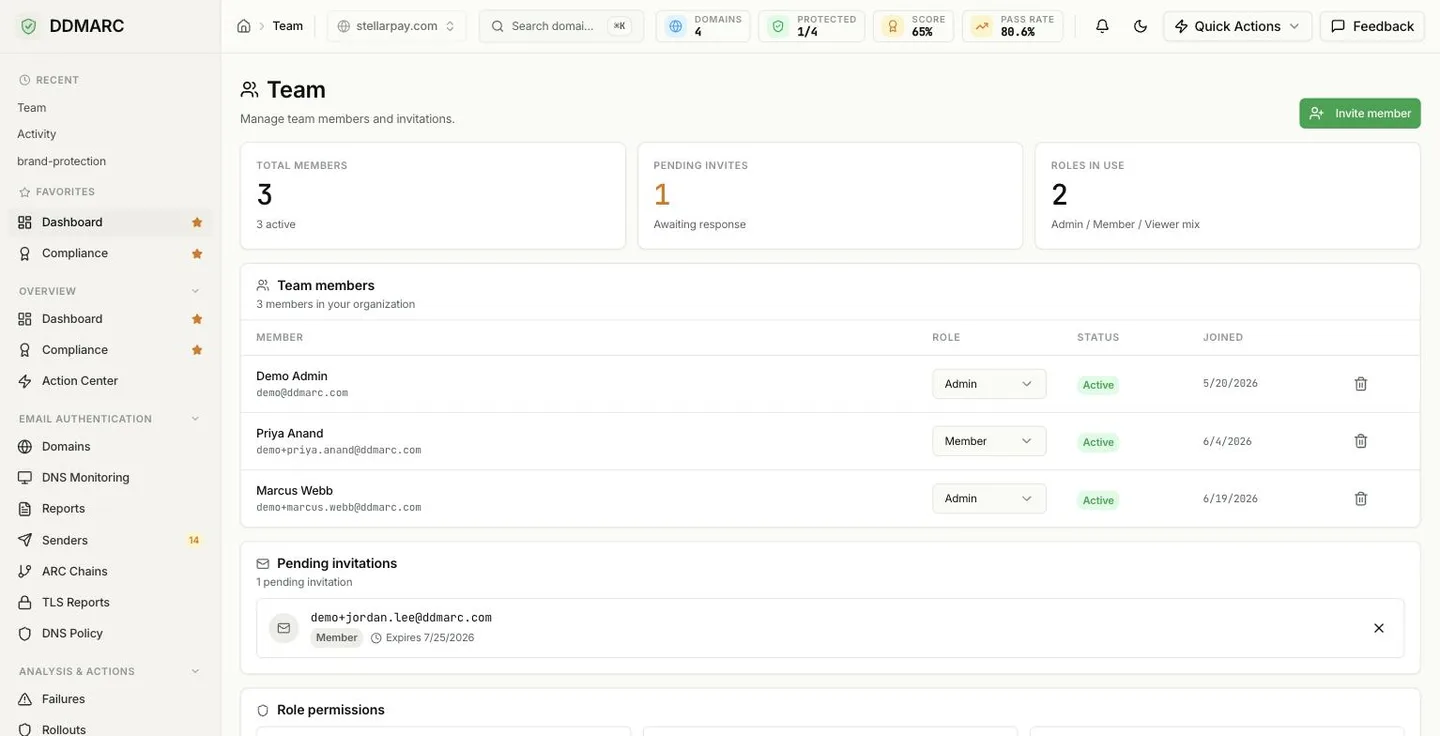
Team is a top-level page in the Management section of the sidebar: Dashboard → Management → Team. It shows totals for members, pending invites and roles in use, the member list with an inline role selector, any pending invitations, and a role-permissions reference.
Inviting a teammate
Open Team and click Invite member
Only admins can invite. The button sits in the page header.
Dashboard → Management → Team → Invite memberEnter an email address and pick a role
The invitation form takes two fields — email address and role (Admin, Member or Viewer). There is nothing else to configure; every member gets access to all domains in the organization.
They accept within 7 days
The invitee receives an email with a one-time link. Invitations expire after 7 days, and the link only works for the address it was sent to. Accepting moves that user into your organization and applies the role from the invitation.
Pending until accepted
Open invitations appear in the Pending invitations list with their expiry date, and they consume a seat while they wait.
Seats by plan
| Plan | Team seats (members + pending invites) |
|---|---|
| Monitor (free) | Cannot invite |
| Protect | Cannot invite |
| Growth | 5 seats |
| Professional | 10 seats |
| Enterprise | Unlimited |
| Partner Starter / Partner | Unlimited |
Managing members
Everything below is done from the Team page and requires the admin role:
Change a role
Use the role dropdown in the members table. You cannot change your own role.
Promote another admin
Set a member to Admin — that is how you hand over billing and org control. There is no ownership transfer step.
Remove a member
The account is deactivated and immediately loses access. The last remaining admin cannot be removed.
Cancel an invitation
Delete a pending invitation to free the seat. Send a fresh invite if you need to re-issue it.
Review what changed
The organization-wide activity log records invites, role changes and removals.
Sole-admin protection: DDMARC refuses to remove or demote the only admin in an organization, and refuses to let the only admin leave. Promote a second admin first.
Team API
| Endpoint | Purpose |
|---|---|
| GET /api/v1/team | List members and pending invitations |
| POST /api/v1/team/invite | Invite by email and role |
| DELETE /api/v1/team/invite/{invitation_id} | Cancel a pending invitation |
| GET /api/v1/team/invite/{token}/info | Look up an invitation before accepting |
| POST /api/v1/team/invite/{token}/accept | Accept an invitation |
| PATCH /api/v1/team/members/{user_id}/role | Change a member's role |
| DELETE /api/v1/team/members/{user_id} | Deactivate and remove a member |
Auditing team changes
Every organization has an activity log — there is no plan gate on it. It records invitations, role changes, member removals, domain changes and configuration edits across a rolling 90-day window, and it is filterable by action type. See Activity Log for the full list of recorded actions, or export it as CSV from Exports. The log is organization-wide; there is no per-member activity view.
Not available yet
Not available yet — Per-domain team access
Access is organization-wide. Every member and viewer can see every domain you have added; roles limit what can be changed, not what can be seen. If different teams must not see each other's domains, put them in separate organizations — or, for agencies, use the partner (MSP) model, where each customer is a separate tenant.
Not available yet — Self-serve SSO configuration and SCIM directory sync
SAML 2.0 and OIDC single sign-on is provisioned on Enterprise agreements and set up with you during onboarding; there is no self-serve SSO configuration in the dashboard. SCIM is not available: users are not provisioned from an identity provider and roles are not synced from directory groups. Self-serve plans sign in with an emailed link or code, a passkey, Google or a Microsoft work or school account. If SSO is a requirement, talk to us before purchasing.
Best practices
- Keep at least two admins so a single departure never locks you out of billing.
- Give auditors and executives the viewer role — they get the full picture and cannot change a policy by accident.
- Cancel stale pending invitations; they occupy a seat until they expire.
- Review the member list quarterly against the activity log.