Senders
Track services sending email on behalf of your domains. DDMARC builds a sender inventory from your DMARC reports so you can see who is sending, how well they authenticate, and which ones still need to be identified.
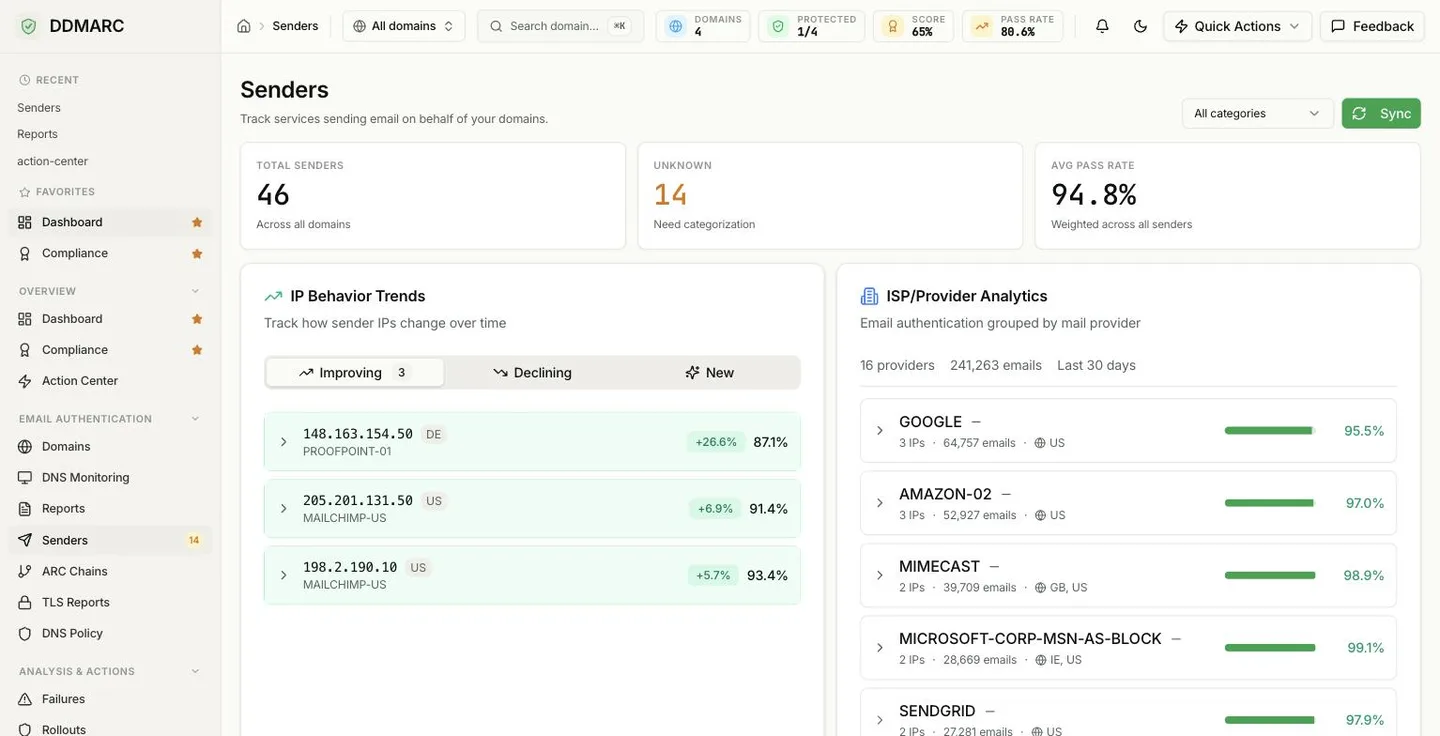
What the tiles mean
Total Senders
Every distinct sending source found across your domains. A sender is one row per domain and sending identity — the ASN organization when it is known, otherwise the source IP.
Unknown
Senders still sitting in the default unknown category. Working this number down to zero is the point of the page.
Avg Pass Rate
Authentication pass rate weighted by message volume, so a high-volume provider moves the number more than a sender that only sent a handful of messages.
The Sync button
Sync rebuilds the sender inventory from the DMARC reports DDMARC has already stored, and reports how many senders were newly created and how many were refreshed. It does not fetch new reports — it re-derives senders from existing report data, so run it after a large batch of reports has been ingested. Members with read-only access see the button disabled.
Sender categories
Categorization is a label you apply — there is no approve or reject workflow, and a category never changes how mail is treated. Setting a category writes the new value to the sender record so you can filter, report on, and reason about your sending estate.
| Value | Label | Use it for |
|---|---|---|
| unknown | Unknown | Default for every newly discovered sender. These are the ones counted in the Unknown tile. |
| marketing | Marketing | Campaign and newsletter platforms sending bulk mail on your behalf. |
| transactional | Transactional | Receipts, password resets, notifications — application-generated mail. |
| internal | Internal | Your own mail servers and corporate mail platform. |
| third_party | Third Party | Vendors, SaaS tools, and partners you have authorized to send. |
| suspicious | Suspicious | Sources you do not recognize and are still investigating. |
| blocked | Blocked | Sources you have decided are not legitimate senders for the domain. |
Categorizing senders
Filter to what you want to review
Use the category dropdown in the page header to narrow the table — start with Unknown. If you are scoped to a single domain, only that domain's senders are listed.
Select rows and bulk-apply
Tick the checkboxes; a bulk bar appears with a Categorize as button for each category. One request can update up to 100 senders.
Open a sender for the details
Click a row to open the sender workspace, where you can also set a friendly display name and free-text notes alongside the category, and review the sending history for that source.
PATCH that sets category, display_name or notes on the sender record.The sender table
Sender
Display name (or ASN organization) with source IP and country underneath. A small badge shows the detected email service provider — labeled “likely” when confidence is not high.
Header From
The From: domain seen for this source in reports.
Category
The label you applied, or Unknown.
Volume
Total messages attributed to this sender. Sortable.
Pass
Pass rate for this sender. Sortable.
Rep
Reputation grade and score. Sortable.
Last seen
Most recent report that mentioned this sender. Sortable.
Sender reputation
Each sender gets a 0–100 reputation score and an A–F grade, computed from the DMARC signals DDMARC already has for that source. Open a sender to see the factor-by-factor breakdown.
What feeds the score
- Authentication pass rate — up to 55 points
- Enforcement outcome — up to 30 points; messages that receivers quarantined or rejected drag it down
- Sender tenure — up to 15 points
- A low-volume dampener pulls senders with little data toward the middle of the range
Grade bands
- A — 90 and above
- B — 80 to 89
- C — 70 to 79
- D — 60 to 69
- F — below 60
Senders with no messages in the window have no score or grade.
IP Behavior Trends
This card splits your sending IPs into three tabs. Each row shows the IP, its ASN organization, the change in pass rate, and the current pass rate.
Improving
Pass rate in the second half of the window is at least 5 percentage points higher than in the first half.
Declining
Pass rate dropped by at least 5 percentage points across the same comparison. These are the ones to look at first.
New
IPs first seen in the last 7 days, regardless of direction — the fastest way to spot a source you did not expect.
To keep the comparison meaningful, only IPs above a minimum message volume are analyzed (100 messages in the window by default), and the analysis is limited to the highest-volume IPs in the period.
ISP / Provider Analytics
The same traffic, grouped by ASN organization instead of by individual IP. For each provider you get the number of distinct IPs, total messages, the countries those messages came from, and the authentication pass rate — which makes it obvious when one provider is responsible for most of your failures.
Providers below a small minimum volume are omitted so the list is not dominated by one-off sources.
Guided remediation
Open a failing sender and DDMARC works out what the fix looks like for that specific source: whether the SPF record needs a new include, needs to be created from scratch, or already authorizes the sender — plus the DKIM selectors and setup instructions for the detected provider where they are known.
One-click SPF apply
When the fix is "add an include" and the domain uses DDMARC hosted SPF, the include can be written for you. This action requires a plan that includes policy automation (Professional and above) and returns an error if hosted SPF is not configured for the domain. Applying the same include twice is safe — it is a no-op.
Included from Professional ($99/mo).Start a 14-day trial →See the Professional plan →
Exporting the inventory
The sender list can be exported as CSV, optionally filtered by domain and category — useful for handing an authorized-sender list to a security review. See Data Exports for the general export workflow.
API endpoints
| Method | Path | Purpose |
|---|---|---|
| GET | /api/v1/senders | List senders (filter by domain_id, category; sort by volume, pass rate, reputation, last seen) |
| GET | /api/v1/senders/stats | Total senders, unknown count, weighted average pass rate |
| GET | /api/v1/senders/{sender_id} | A single sender |
| PATCH | /api/v1/senders/{sender_id} | Update category, display_name or notes |
| PATCH | /api/v1/senders/bulk | Set one category on up to 100 senders at once |
| POST | /api/v1/senders/sync | Rebuild senders from stored DMARC report data |
| GET | /api/v1/senders/{sender_id}/history | Daily volume and pass-rate history for one sender |
| GET | /api/v1/senders/{sender_id}/reputation | Reputation score, grade and per-factor breakdown |
| GET | /api/v1/senders/{sender_id}/remediation | Guided SPF/DKIM fix for this sender |
| POST | /api/v1/senders/{sender_id}/remediation/apply | Apply the SPF include to a hosted-SPF domain |
| GET | /api/v1/senders/ip-trends | Improving, declining and new sending IPs |
| GET | /api/v1/senders/isp-analytics | Volume and pass rate grouped by ASN organization |
| GET | /api/v1/senders/export/csv | CSV export of the sender inventory |
All endpoints are scoped to your organization. See API Authentication to get started.