Domain Management
Add a domain, publish the DMARC record DDMARC generates for it, and reports start arriving. This page covers adding domains, what the domain workspace contains, DNS checks and removal.
Adding a domain
Click Add Domain
Add Domain sits in the dashboard header and on the Domains page. It opens a modal with a single field.
Add DomainEnter the domain name
Enter the bare domain — no https:// and no www.. For example: example.com
Publish the DMARC record
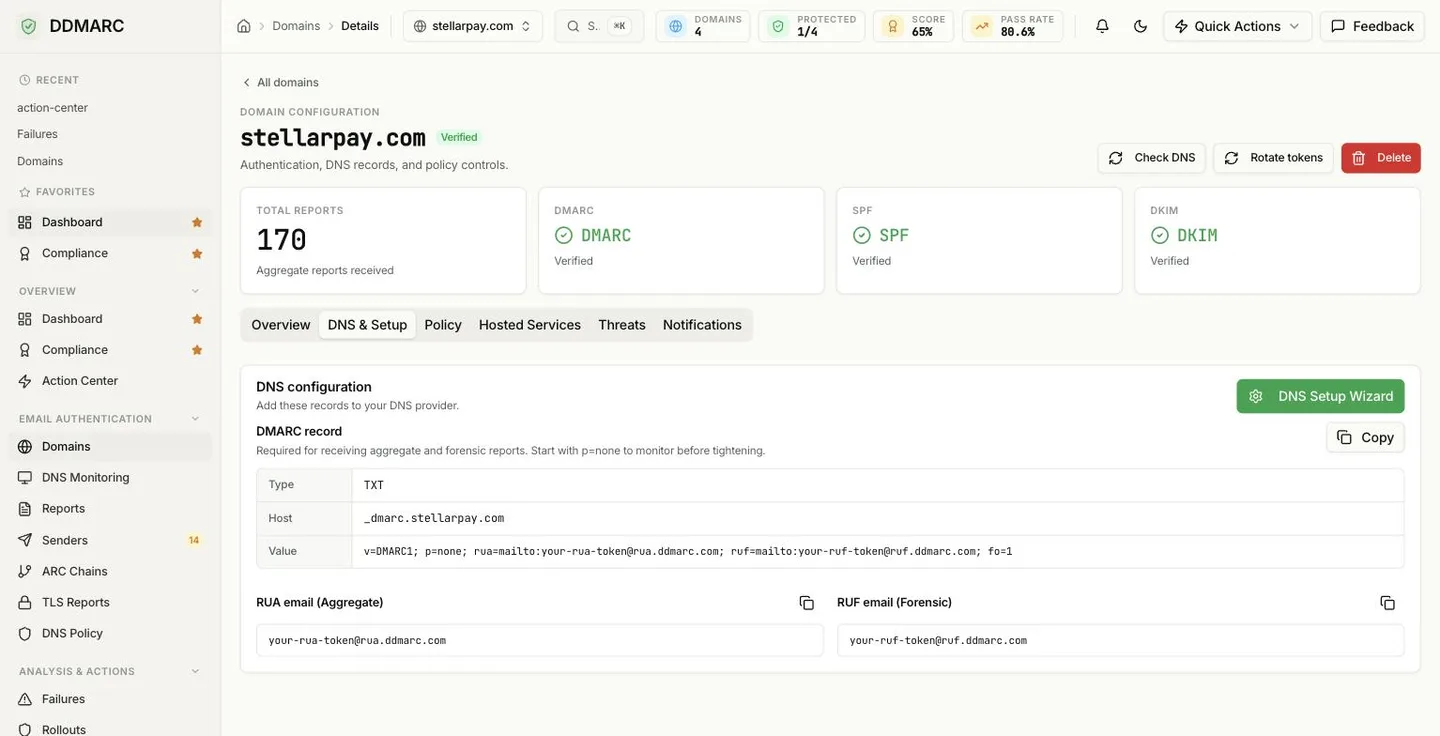
DDMARC generates a DMARC record containing a reporting address that is unique to this domain. Copy the exact value from DNS & Setup — the local part is a per-domain token, so a generic address from documentation will not deliver anything.
Replace your-rua-token with the value shown for your domain in the dashboard. If you also collect forensic reports, the ruf= address uses a separate per-domain token at ruf.ddmarc.com.
Wait for the first reports
Nothing else is required. Mailbox providers send aggregate reports on their own schedule, typically once every 24 hours, so expect your first data within a day or two of the record going live. Use Check DNS on the domain page to confirm the record is visible in public DNS in the meantime.
Verification happens on its own
A domain is marked verified automatically when the first report arrives at its reporting token — receiving reports at a token only you could publish is the ownership proof. The optional ownership TXT record is only there if you want to prove ownership before any report arrives.
The DNS & Setup tab
Every record DDMARC generates for a domain lives here, alongside the result of the most recent DNS check.
How status is tracked
There is no single traffic-light status for a domain. DDMARC tracks each monitored record independently, and each one is in one of three states:
Valid
The record was found and parsed successfully at the last check.
Invalid / missing
The record is absent, or it is present but failed validation.
Not checked
No check has run for this record yet — not an error. Run Check DNS to populate it.
Separately from these, the domain carries a verified flag, which confirms the domain belongs to you.
Records DDMARC watches
Six record types are checked and scored. Only the DMARC record is required for reporting to work; the rest determine how well your mail actually authenticates.
| Record | Host | Required | What it does |
|---|---|---|---|
DMARC | _dmarc | Required | Your policy and the reporting addresses |
SPF | @ | Recommended | Authorized sending IPs (strongly recommended) |
DKIM | selector._domainkey | Recommended | Signing keys, checked against your configured selectors |
TLS-RPT | _smtp._tls | Recommended | Where TLS failure reports are sent |
MTA-STS | _mta-sts | Recommended | Transport security policy and its version ID |
BIMI | default._bimi | Recommended | Brand logo and VMC location |
See DNS Monitoring for how often these are re-checked and how change alerts work.
The domain workspace
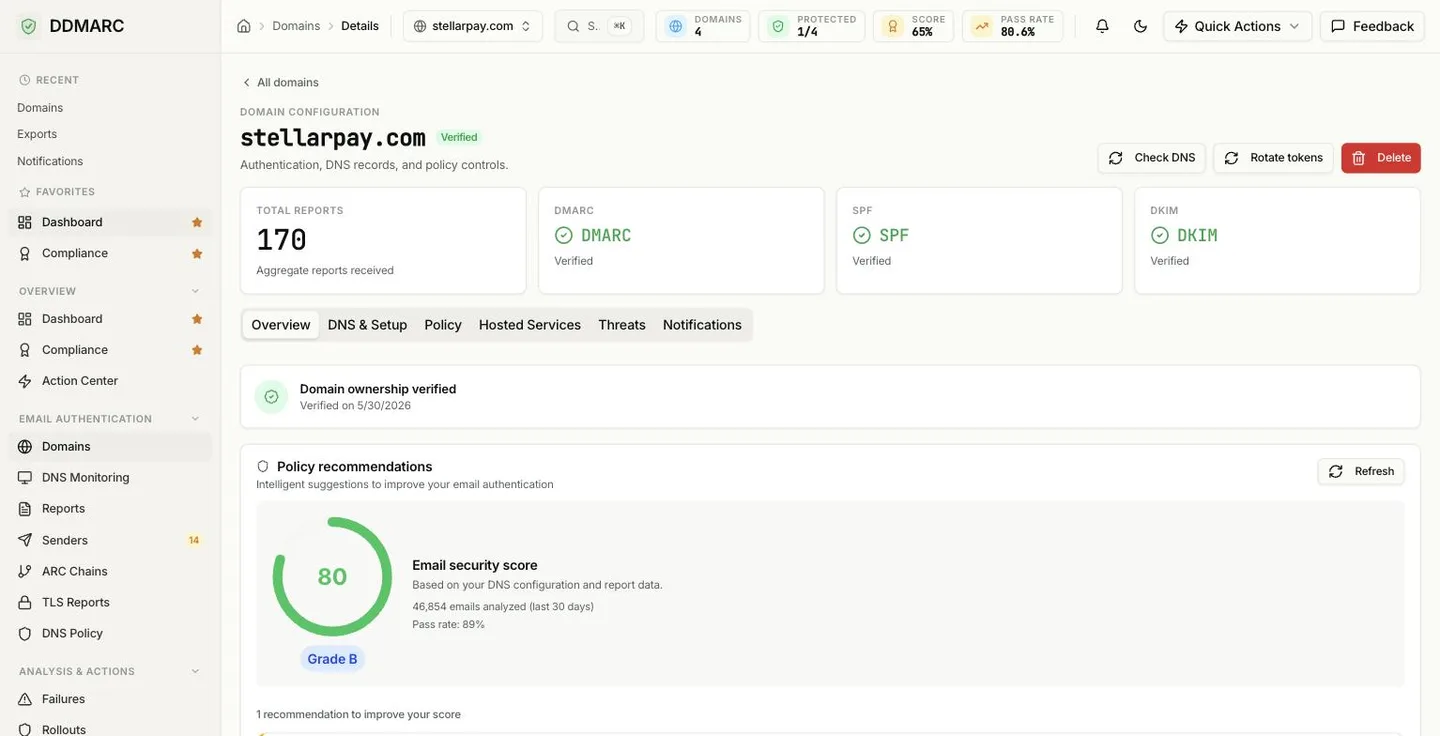
Opening a domain gives you a KPI row and six tabs:
Overview
Verification banner, policy recommendations, posture explanation and recent reports.
DNS & Setup
The records DDMARC generates for you, plus the result of the last DNS check.
Policy
Policy enforcement settings including the subdomain policy, the policy simulator, and staged rollouts.
Hosted Services
SPF flattening, hosted DKIM, managed MTA-STS and managed BIMI.
Threats
Lookalike/typosquat detection and bulk-sender compliance.
Notifications
Per-domain email notifications, weekly digest and minimum alert severity.
Actions on a domain
Three actions live in the domain header and are available from every tab:
Check DNS
Runs an immediate lookup of every monitored record and refreshes the DNS & Setup tab. Use it after changing DNS — propagation can still take up to 48 hours.
Rotate tokens
Issues fresh RUA and RUF tokens. Reporting stops until you publish the new addresses in DNS, so only rotate if a token has leaked.
Delete
Removes the domain and everything attached to it. Confirmation is required.
Per-domain settings
These are configured on the domain itself, not organization-wide:
DMARC policy and subdomain policy
Target policy (none, quarantine, reject) and a separate subdomain policy, published from the Policy tab.
Policy rollout
Staged progression toward enforcement with automatic advance conditions.
Notification settings
Email notifications on or off, weekly digest, and the minimum alert severity for this domain.
DNS monitoring
Check interval, which record types to watch, and which DKIM selectors to look up.
Hosted services
SPF flattening, hosted DKIM keys, managed MTA-STS and managed BIMI.
Threat detection
Lookalike-domain scanning and the bulk-sender compliance matrix.
Data retention is a property of your plan, not of a domain — see Data Exports for the retention window on each plan.
How many domains you can add
| Plan | Domain limit |
|---|---|
| Monitor (free) | 2 domains |
| Protect | 5 domains |
| Growth | 15 domains |
| Professional | 25 domains |
| Enterprise | Unlimited |
| Partner Starter / Partner | Unlimited (metered) |
Adding a domain beyond your limit is rejected with a clear error — remove a domain or upgrade.
Managing subdomains
Your DMARC policy applies to subdomains unless you publish a different subdomain policy (the sp= tag), which you can set on the Policy tab.
- Reports for subdomains arrive under the parent domain unless the subdomain publishes its own DMARC record.
- Add a subdomain as its own domain when you need separate policies, rollouts or hosted services for it. It counts against your domain limit.
- Use
sp=rejectto protect subdomains you never send from.
How often DNS is re-checked
Scheduled DNS checks are a paid feature and the cadence depends on your plan. On the free Monitor plan nothing runs on a schedule — you click Check DNS when you want a fresh result.
| Plan | Fastest scheduled check |
|---|---|
| Monitor (free) | Manual checks only — no scheduled sweep |
| Protect | Every 24 hours |
| Growth | Every 12 hours |
| Professional | Every 6 hours |
| Partner Starter / Partner | Every 6 hours |
| Enterprise | Hourly |
Removing a domain
Open the domain and use Delete in the header, then confirm. Deletion also tears down anything DDMARC was hosting for that domain on your behalf.
Warning: deleting a domain removes all of its historical report data, senders, alerts and rollout history. It cannot be undone — export what you need first.
Remember to remove the _dmarc record from your own DNS as well, or providers will keep sending reports to an address that no longer accepts them.
Adding many domains at once
Not available yet — Bulk CSV domain import
There is no CSV upload for domains. Domains are added one at a time in the dashboard, or in a loop against POST /api/v1/domains. Each domain gets its own reporting tokens, so you still have to publish a distinct DMARC record per domain.
API import
Use the Domains API to add domains programmatically and read back each one's generated records.
View the Domains API